
Guide: How to Set Up Telegram Uptime Alerts
Learn how to configure instant Telegram notifications so your agency can catch downtime before your clients do.
Lead Developer

Why Email Alerts Aren't Enough Anymore
When a client's high-traffic WooCommerce site goes down on a Friday night, an email alert buried in your inbox might not be seen until Monday morning. For true peace of mind, agencies and freelancers need push notifications that cut through the noise.
In the past, developers relied on SMS for this, but SMS is expensive, inflexible, and lacks context. Telegram has emerged as the perfect solution because it's fast, incredibly reliable, and completely free to use for push alerts.
The Anatomy of a Perfect Alert
A good alert needs to tell you exactly what went wrong in a single glance. With Telegram, you get rich text formatting, which allows us to structure alerts clearly:
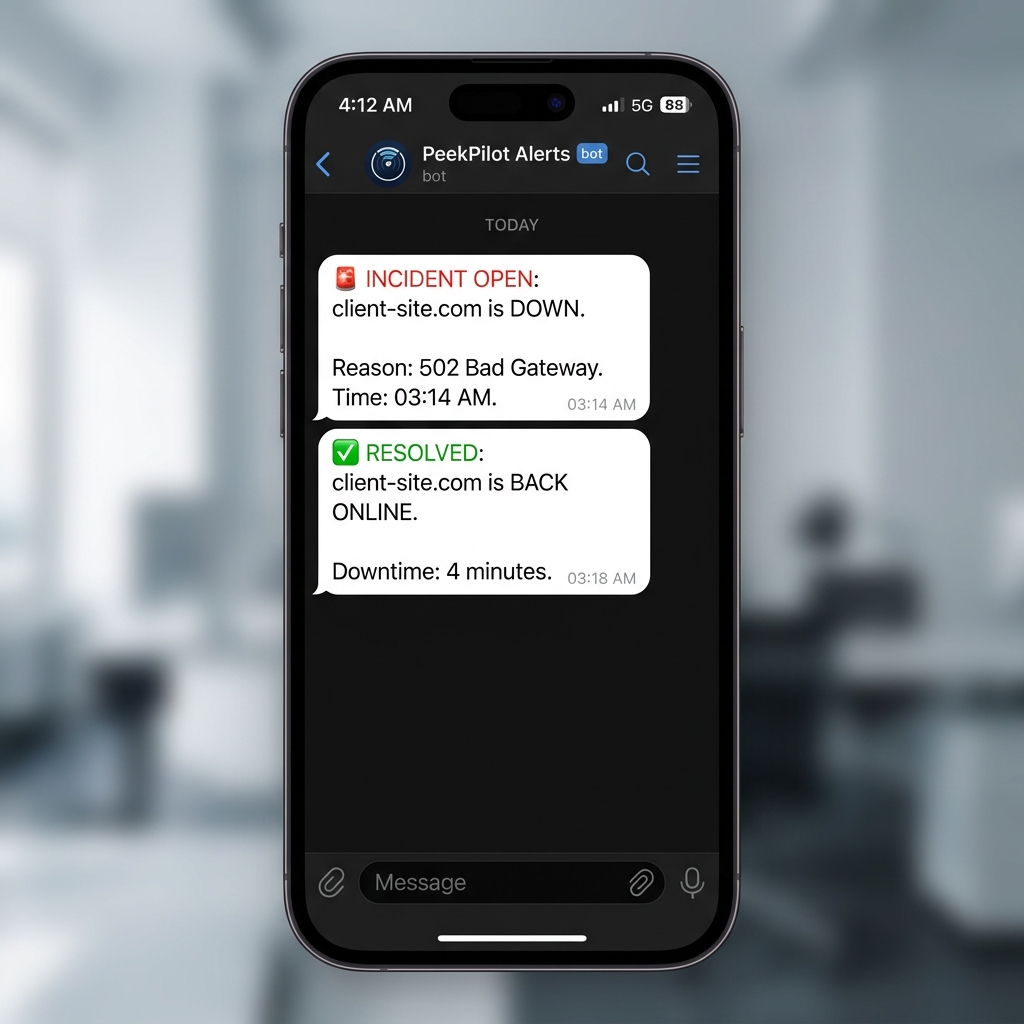
As you can see, a proper alert includes:
- Visual Indicators: Emojis (🚨 for down, ✅ for up) help you instantly assess the severity without reading a word.
- The Target: Which specific client site went down.
- The Reason: The HTTP status code (e.g., 502 Bad Gateway) or error message (e.g., Connection Timeout).
- The Timestamp: Exactly when the incident started.
Connecting Your Chat App: The Hard Way vs. The Easy Way
Setting up Telegram alerts from scratch usually requires creating a Telegram Bot via BotFather, writing custom webhook listeners in PHP or Node.js, and managing secure API tokens on your server.
Source: If you want to build this yourself, consult the Official Telegram Bot API Documentation.
The PeekPilot Way (Zero Code)
PeekPilot offers native Telegram integration right out of the box on all premium plans. You don't need to write a single line of code or manage webhooks. Here is the setup flow:
- Open your PeekPilot Dashboard and navigate to Settings > Notifications.
- Click Connect Telegram.
- Our system will give you a unique command like
/start peekpilot_auth_783. - Open the Telegram app, search for the official
@PeekPilotBot, and paste the command. - You are instantly linked!
Creating Dedicated Incident Channels
If you run a larger agency, you don't want all alerts going to a single developer's phone. You can create a dedicated Telegram Group (e.g., "Agency DevOps Team") and add the PeekPilot bot to that group. When a site drops, the entire team is notified simultaneously, allowing whoever is on-call to rapidly respond to the client issue.
In addition to standard uptime alerts, you can also configure the bot to send SSL expiry warnings, ensuring you never let a client's certificate expire unexpectedly.
Helpful Next Steps
Stop guessing if your sites are online
Get instantly notified via email, Telegram, or WhatsApp when your WordPress sites go down.
Start monitoring for free